AutoTrader
The NDT AutoTrader software crunches the data coming from Sierra Charts, then if a trade signal is found, will log it and send it directly to the broker platform. The connection to the platform is a direct link to the software.
Licensing
- The AutoTrader is licensed under the email you used on software signup
- Please allow 24 hours after sending us your free trial notice for licensing to show up
- Go to Help > Licensing...
- In this window, enter your email and check for license
- If successful, you will be notified
- Future boots will not require a license check
AutoTrader Logon
- When the logon screen appears, first, make sure the symbol is correct and the same as what is running in your Sierra charts
- If symbol not current, abort logon and change the symbol first (see below). Close the software and reboot
- Next, enter your broker username and password
- Select the same 'Mode' as you are running in broker (Demo, Simulation, Live Funded)
- Click 'Accounts' and when your account appears, click 'Logon'
- If successful, the 'Fill' window shows with some initializing info
- The AutoTrader will send a test 'Cancel All' command to ensure all is connected properly AND that the correct front month symbol is being used
- The next step is to go to the top settings link
AT:ON/OFF Buttons
- First make sure that the logon was successful as printed in the 'Fills' window
- Next, make sure settings are to your liking
- Click the button, AT:OFF to toggle to AT:ON
- You are now live and AutoTrader will send trade signals to InfinityAT platform for execution
- You can set AutoTrader live the night before and it still will only process trade signals during the allowed Start and End times
Settings - General
- This is the 'Settings' link at the top of the software
- Setting: Options
- Change and Apply a new symbol front month
- Select any system sounds desired for AutoTrader functions
- Setting: Chart Output Folder
- This is how the AutoTrader communicates with Sierra Charts, thru this common folder
- Reset folder path only if not correct
- Default is: C:\SierraChart\Data
- ALWAYS click 'Apply' to effect changes, otherwise changes will not be saved
Settings - Trade
- These are found in the 3 tabs in the main panel: Set 1, Set 2, Trail
- Set 1:
- S/R No Entry Tick Zones:
- These are the 'no take a trade' in the price areas around the Floor Pivot Levels
- We have a default of 6 ticks above and below each zone, but you can change these if desired
- Check the box, 'Engage Zones' to enable these above and below tick zones
- Place Order Cancel Time:
- When a 'Limit' order is placed it may or may not get filled, depending on price action
- This timer will cancel a pending limit order in the selected number of minutes if not filled
- This is to prevent unfilled orders sitting around
- Filled Order Auto-Flatten:
- This is useful for days when price action is wandering and only happens if your are filled
- The timer will flatten your position in the selected number of minutes IF you have a profit of the number of ticks selected
- AT OFF Dollar Targets:
- You can have the AutoTrader stop taking signals if these values are reached
- Set 2:
- Trade Entry Times Start/End:
- Set the time for the AutoTrader to accept trade signals
- It is prudent NOT to take signals at the beginning first 5-10 minutes and the ending 15-30 minutes of the trading day (6:30 AM to 13:00 PM PST)
- Event Times:
- EOD is the 'End of Day' flatten time. You MUST be flat before 13:15 PM PST each day, so this function endures that is the case. It is insurance as the AutoTrader will send a 'Cancel All' command then
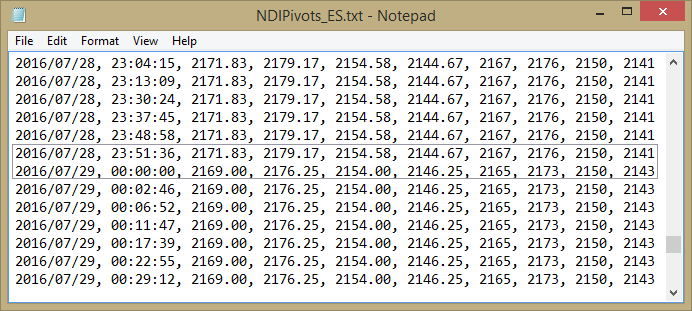
- Reload FTN's: This is the time in the night when the Floor Trader Numbers will be calculated for the coming trading day. This time must be after midnight. You can click the button 'Check file...' and the chart output file will open containing the exported FTN file. Browse thru the file to see at what time in the night, the values changed from one day to the next. Then set the reload time to something after that...
- Trail:
- You must first, in the DOM, use the Simple Bracket and put in values for target and stoploss
- Single Action Stop Move Up:
- At a 'Trigger' ticks profit, the stop will move up to 'Distance' ticks behind price
- The stop will then not move any more
- Trailing Stops:
- You may or may not use the 'Single Action Stop Move...' first
- You here have a 2 step trail system available here. The theory is that on getting closer to target, you may wish to tighten the stop closer to the current price (by using ES Step 2)
- The 'ES final 1 tick...' is interesting. Here, if price gets to within 1 tick of your DOM's target price, the target price will be adjusted to your existing target PLUS 1 tick, AND, bring the stoploss to 1 tick below current price. This is sort of a 'chase' mechanism, and sometimes can get you that extra tick or 2!
- Mkt Order - Limit Orders
- At the top are these 2 options
- Market Order - will fill you immediately at best available price. Slippage likely
- Limit Order - will fill you only if price 'moves thru' your limit order price. You 'may' not get filled
(this is why we have a 'Cancel order if not filled' function in Set 1) - Learn more here
Misc
- Under File > Trade Logs, you can view the saved trade log file. This log file is created when you close the AutoTrader
- The S/R tab. This shows you the current Floor Trade Number levels for the day
- Version. Go to Help > Version... to see if your version is current. We also post on FB update notices
- You can start all 3 softwares up the night before (Sierra, Broker, AutoTrader). AutoTrader will use the Start Time setting to begin taking trade signals
Back to HOME page